


5G Hotspot Configuration Guide: Step-by-Step Setup for Reliable Internet

Most American households expect their 5G hotspot to deliver seamless internet on demand, yet a single overlooked step can sideline even the best devices. Compatibility and correct setup are not just technical formalities—they are essential to keeping your network reliable and secure. With over 95 percent of new devices supporting various networks, knowing precisely how to match your hotspot to your carrier will spare you hours of frustration and keep you confidently connected.
Table of Contents
- Step 1: Assess Device and Plan Compatibility
- Step 2: Install SIM Card and Power On Device
- Step 3: Access Hotspot Settings via Web Interface
- Step 4: Configure Network Preferences and Security
- Step 5: Connect Devices and Verify Internet Access
Quick Summary
| Important Point | Explanation |
|---|---|
| 1. Confirm Device Compatibility | Check your device specifications against carrier networks to avoid connectivity issues later. |
| 2. Properly Install the SIM Card | Insert the SIM card correctly to enable your hotspot for internet access. |
| 3. Access Web Interface for Configuration | Log into the web interface to adjust settings, manage security, and monitor device performance. |
| 4. Set Network Name and Security | Create a unique SSID and strong password to secure your wireless network from unauthorized access. |
| 5. Test Internet Connection | Connect your devices and run speed tests to ensure stable and optimal internet performance. |
Step 1: Assess Device and Plan Compatibility
Before setting up your 5G hotspot, you must confirm your device works with your intended network. This critical step prevents future connectivity headaches and ensures smooth internet access. Checking compatibility involves examining your device specifications and comparing them against available wireless carrier networks.
Start by reviewing your hotspot’s technical specifications. Comprehensive device compatibility guides from the Calyx Institute can help you determine which networks and frequency bands your device supports. Look specifically for details about 4G LTE and 5G network compatibility. Pay close attention to supported radio frequency bands which vary across different wireless carriers.
Your carrier’s network coverage map represents another crucial compatibility checkpoint. Unlimited hotspot plan comparisons from Internet Health Test can help you understand data limitations and network access. Verify your device supports the specific frequency bands used by your preferred carrier. Pro tip: Call your carrier directly if online specifications seem unclear or you need precise technical confirmation about device interoperability.
After confirming compatibility, you are ready to move forward with network configuration and activation. The next step will guide you through initial device setup and network connection procedures.
Step 2: Install SIM Card and Power On Device
Now that you have confirmed device compatibility, the next crucial step is installing your SIM card and powering on your 5G hotspot. This process transforms your portable device into a gateway for high-speed wireless internet access. Proper SIM card installation ensures your hotspot can connect to your chosen wireless network.
Begin by locating the SIM card slot on your device. Most 5G hotspots have a clearly marked compartment typically located on the side or back panel. Carefully remove the SIM card tray using the provided ejection tool or a small paperclip. Align the SIM card with the tray’s designated orientation markings typically indicated by a small diagram showing the correct chip placement. Gently slide the SIM card into position and reinsert the tray completely.
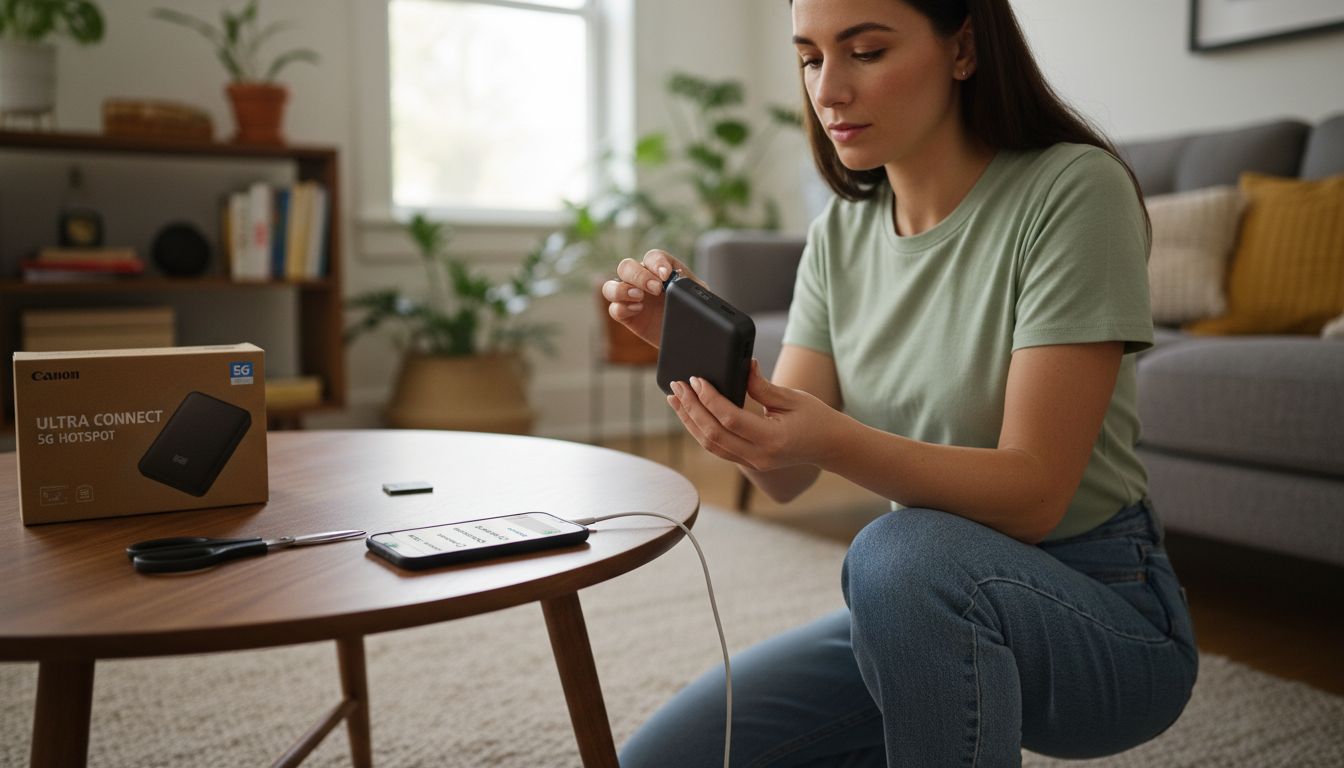
Once the SIM is installed, connect your device to a power source using the included charging cable. Press and hold the power button until the device illuminates or displays a startup screen. Your hotspot will begin searching for available networks. Wait a few moments as the device establishes its initial connection. If no network appears, double check your SIM card placement or consult your device manual. The next section will walk you through configuring your network settings and establishing a stable internet connection.
Step 3: Access Hotspot Settings via Web Interface
After powering on your device, accessing the web interface allows you to configure and customize your 5G hotspot settings. This crucial step provides full control over your network configuration, security options, and device management. Most modern hotspots offer a straightforward web based setup process accessible through your default web browser.
Device user manuals from manufacturers like Franklin and JEXtream typically provide specific instructions for accessing the web interface. Start by connecting to your hotspot wireless network or using an ethernet connection. Open a web browser and enter the default IP address usually printed on your device or found in the user manual. This address is commonly something like 192.168.1.1 or 192.168.0.1. You will be prompted to enter default login credentials which are often a combination of default username and password printed in your device documentation.
Once logged in, you can modify network settings, adjust security configurations, monitor data usage, and customize your hotspot performance. Technical documentation from manufacturer user guides offer detailed walkthroughs for navigating these interfaces. Pro tip: Change your default login credentials immediately to prevent unauthorized access. The next section will guide you through configuring your network settings and establishing a secure connection.
Step 4: Configure Network Preferences and Security
Configuring your 5G hotspot network preferences and security settings is critical for protecting your connection and optimizing performance. This step allows you to customize wireless network names, set robust passwords, manage connected devices, and establish advanced security protocols that keep your internet access safe and efficient.
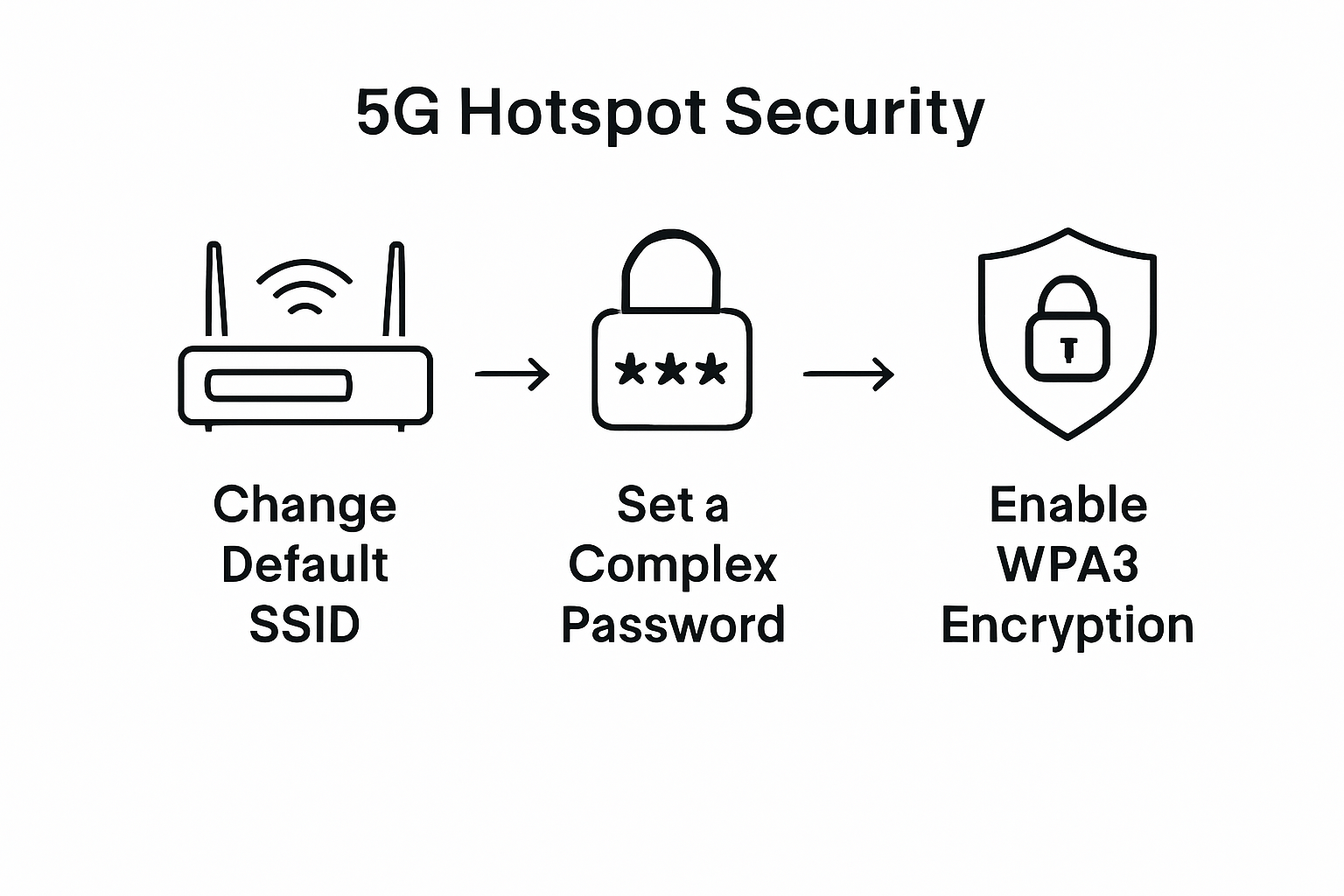
Mobile hotspot user manuals from manufacturers recommend beginning with fundamental security settings. Navigate to the wireless configuration section and create a unique network name (SSID) that does not reveal personal information. Select WPA3 encryption if available, which provides the strongest current protection against unauthorized access. Choose a complex password combining uppercase and lowercase letters, numbers, and special characters that is at least 12 characters long.
Additional security configurations can further protect your network. Technical documentation from mobile hotspot guides suggest enabling features like MAC address filtering, which allows only specific devices to connect to your network. Review connected device lists regularly and remove any unfamiliar or unauthorized connections. Pro tip: Consider setting up a guest network if you frequently need to share internet access with others, keeping your primary network isolated and secure. The next section will walk you through testing your network connection and troubleshooting potential issues.
Step 5: Connect Devices and Verify Internet Access
With your network configured, the next critical phase involves connecting your devices and confirming reliable internet access. This step transforms your 5G hotspot from a configured device into a functional connectivity hub for your digital ecosystem. You will systematically connect multiple devices and run performance checks to ensure optimal internet performance.
Understanding potential wifi hotspot connectivity challenges can help you anticipate potential connection problems. Begin by accessing your hotspot’s wireless network from each device using the network name and password you established earlier. Navigate to your device’s wireless settings, select the network, and enter the security credentials. For smartphones, tablets, laptops, and other wireless devices, this process involves opening network settings and choosing your hotspot network from the available options.
After connecting devices, run internet speed tests on multiple platforms to verify consistent performance across different device types. Check download and upload speeds, latency, and connection stability. Pro tip: Position your hotspot in a central location with minimal obstructions to maximize signal strength and coverage. If connection issues persist, restart your devices or reconfigure network settings. The final section will provide advanced troubleshooting techniques to resolve any remaining connectivity challenges.
Unlock Seamless 5G Connectivity with SabertoothPro
Setting up your 5G hotspot can feel overwhelming with so many technical details to consider like device compatibility, network security, and configuration. You want reliable high-speed internet without the hassle of troubleshooting connection issues or worrying about unsecured networks. Our solutions are designed to solve these exact challenges by providing premium 5G hotspots and customizable Titan WiFi hotspot plans that ensure fast and secure internet access wherever you go.

Take control of your connectivity today by exploring our full range of Titan WiFi devices crafted for performance and simplicity. Whether you are an individual user or managing business networks requiring cutting-edge wireless technology and security, SabertoothPro.com offers expert guidance and solutions to get you online instantly and stay connected confidently. Visit SabertoothPro.com now and experience the future of easy, reliable 5G internet.
Frequently Asked Questions
How do I check if my device is compatible with a 5G hotspot?
To check device compatibility with a 5G hotspot, review your device’s technical specifications and compare them against the 5G and 4G LTE support listed by wireless carriers. Use comprehensive device compatibility guides to see if your device supports the necessary frequency bands and networks.
What is the process for installing the SIM card in a 5G hotspot?
To install the SIM card in your 5G hotspot, locate the SIM card slot and carefully remove the tray. Align the SIM card according to the orientation markings and reinsert the tray securely into the device.
How can I access my 5G hotspot’s web interface?
Access your 5G hotspot’s web interface by connecting to your device’s wireless network and entering the default IP address into a web browser. Log in using the default username and password provided in the user manual to configure your settings.
What are essential security settings to configure on my 5G hotspot?
To secure your 5G hotspot, create a unique network name (SSID) and set a complex password with at least 12 characters. Choose WPA3 encryption if available and consider enabling MAC address filtering to restrict device access.
How do I connect my devices to the 5G hotspot and ensure internet access?
Connect your devices by selecting your configured hotspot network from the wireless settings and entering the password you established. After connecting, run internet speed tests to verify reliable performance across all devices.
What should I do if I face connectivity issues with my 5G hotspot?
If you experience connectivity issues, start by restarting your devices and repositioning your hotspot for better signal strength. If problems persist, recheck the network settings and ensure all configurations are correct before troubleshooting further.