


How to Set Up 5G Hotspot for Reliable Connectivity

Over one third of American households now rely on mobile hotspots to stay connected wherever their day takes them. Whether you are working remotely, managing a business on the road, or just need strong internet during travel, the right setup can make all the difference. This guide walks you through every step to help you harness the power of 5G hotspots for faster, more reliable access across any American city or rural escape.
Table of Contents
- Step 1: Choose Your 5G Hotspot Device and Data Plan
- Step 2: Insert SIM Card and Power On the Device
- Step 3: Configure Network Settings on the Hotspot
- Step 4: Connect Your Devices to the 5G Hotspot
- Step 5: Verify Connectivity and Optimize Performance
Quick Summary
| Key Point | Explanation |
|---|---|
| 1. Choose the right device and plan | Select a 5G hotspot with Wi-Fi 6 support and a suitable data plan based on your needs for speed and coverage. |
| 2. Correctly insert SIM and power on | Ensure proper SIM insertion and follow startup procedures to prepare your device for internet connectivity. |
| 3. Configure network settings | Customize your hotspot’s SSID, security settings, and password for secure and efficient internet access. |
| 4. Connect devices strategically | Use either manual setup or QR codes to connect devices, keeping an eye on connection limits and prioritizing essential devices. |
| 5. Monitor connectivity and performance | Regularly check signal strength, conduct speed tests, and restart your device to maintain optimal internet performance. |
Step 1: Choose Your 5G Hotspot Device and Data Plan
Selecting the right 5G hotspot device and data plan is crucial for ensuring reliable internet connectivity, whether you are a remote worker, RV traveler, or small business owner. Your choice will directly impact your internet speed, coverage, and overall user experience.
When evaluating 5G hotspot options, consider several key factors that can make or break your mobile connectivity. Device compatibility, data allowance, network coverage, and total cost of ownership are critical considerations. Top mobile hotspot reviews suggest looking for devices with Wi-Fi 6 support that can simultaneously connect multiple devices and provide robust signal strength.
Different providers offer varied plans that might suit your specific needs. For instance, Verizon provides premium high-speed data plans, while T-Mobile offers more budget-friendly options with lower data caps. Assess your typical monthly data consumption patterns and choose a plan that provides sufficient bandwidth without unnecessary overage charges. Pro tip: Always check carrier coverage maps for your primary locations to ensure consistent connectivity.
Step 2: Insert SIM Card and Power On the Device
Now that you have selected your 5G hotspot, the next crucial step is correctly inserting the SIM card and powering on your device. This process ensures your mobile hotspot is ready to provide reliable internet connectivity wherever you go.
Device setup instructions typically involve a few straightforward steps. First, locate the SIM card slot on your device typically found on the side or under a removable battery cover. Carefully insert the SIM card with the gold contacts facing downward, making sure it slides smoothly into the designated slot. Some devices require you to gently press the SIM card until it clicks into place.
After inserting the SIM card, press and hold the power button for approximately 3 to 5 seconds. Most 5G hotspots will display a startup screen or indicator light signaling the device is booting up. Mobile hotspot manuals recommend waiting about 60 to 90 seconds for complete initialization. Pro tip: Keep your device charged or connected to power during the first startup to prevent any interruption in the setup process. Once powered on, you should see a network name and signal strength indicator showing your hotspot is ready to connect devices.
Step 3: Configure Network Settings on the Hotspot
Configuring your 5G hotspot network settings is a critical step in ensuring secure and efficient internet connectivity. This process involves customizing your device’s network parameters to match your specific usage requirements and security preferences.

Network configuration guides recommend accessing your hotspot’s admin interface through a web browser or dedicated mobile app. You will typically need to input the default IP address typically 192.168.1.1 or 192.168.0.1 into your browser. Key settings to customize include your network name (SSID), wireless security protocol (WPA2 or WPA3), and password strength. Consider creating a unique password that combines uppercase and lowercase letters, numbers, and special characters to enhance security.
Mobile hotspot management tools often provide advanced options like channel selection, DHCP settings, and connection limits. Pro tip: If you are working in an area with multiple wireless networks, select a less congested wireless channel to improve performance. Some devices also allow you to set up guest networks or limit the number of simultaneous connections, providing additional control over your mobile internet access.
Step 4: Connect Your Devices to the 5G Hotspot
Connecting your devices to the 5G hotspot is a straightforward process that will enable you to access high speed internet on multiple gadgets simultaneously. Understanding the connection methods will help you quickly get your smartphones, laptops, tablets, and other WiFi enabled devices online.
Hotspot connection guides recommend two primary methods for establishing connections: manual WiFi setup and quick connection using QR codes. For manual setup, navigate to your device WiFi settings, select your hotspot network name (SSID), and enter the password you configured earlier. Many modern devices support QR code scanning, which provides an even faster connection method by simply capturing the network credentials directly from your hotspot screen.
Mobile hotspot management resources suggest being mindful of simultaneous connection limits and network bandwidth. Pro tip: Check your device specifications to understand the maximum number of devices that can connect concurrently. Some 5G hotspots support up to 10 or 15 simultaneous connections, but performance may degrade with increased device connections. Consider prioritizing bandwidth for critical work devices and managing connections strategically to maintain optimal internet speeds.
Step 5: Verify Connectivity and Optimize Performance
Verifying your 5G hotspot connectivity and optimizing its performance ensures you get the most reliable and fast internet experience. This critical step helps you confirm your network is functioning correctly and fine tune its capabilities for maximum efficiency.
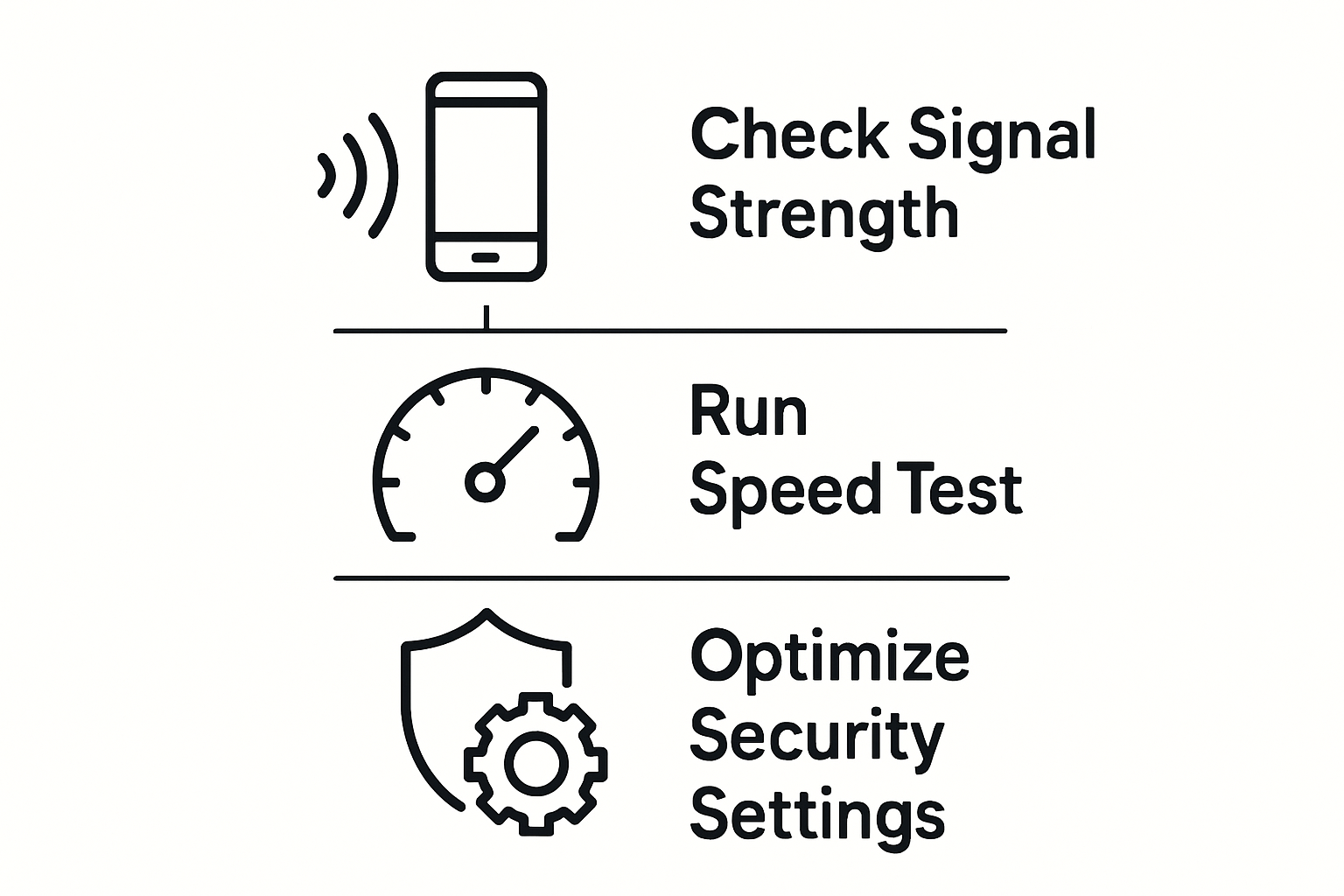
Hotspot troubleshooting guides recommend several practical methods to verify connectivity. First, check your device’s signal strength indicator and battery level. Run a speed test using online tools to confirm download and upload speeds match your expected performance. Pay attention to your hotspot’s physical location as positioning can significantly impact signal quality recommended to place the device near a window or in an open area with minimal obstructions.
Mobile hotspot security resources emphasize the importance of monitoring connection safety and performance. Pro tip: Periodically restart your hotspot device to clear temporary network congestion and refresh its connection. Use built in diagnostic tools or mobile apps to track data usage, manage connected devices, and identify potential performance bottlenecks. Regularly updating your device firmware can also improve overall network stability and introduce security enhancements that protect your mobile internet experience.
Unlock Seamless 5G Connectivity with SabertoothPro Solutions
Setting up your 5G hotspot for reliable connectivity is essential but can feel overwhelming when navigating device choices, network configurations, and plan options. Many users struggle with finding a high-performance device that supports multiple connections, securing their network effectively, and ensuring strong coverage wherever they go. Whether you are optimizing for remote work, travel, or business operations, the right tools matter.
SabertoothPro offers advanced 5G hotspot devices and tailored data plans designed to take the guesswork out of setup. Explore our selection at Titan WiFi Hotspot Plans and discover devices that feature robust signal strength with Wi-Fi 6 technology.

Don’t settle for unreliable internet when you can adopt cutting-edge 5G solutions today. Visit SabertoothPro.com to browse our best offers and take advantage of Special Promotions designed to fit your connectivity needs. Get connected faster with expert support at your side and unlock the full potential of your 5G hotspot now.
Frequently Asked Questions
How do I choose the right 5G hotspot device and data plan?
Choosing the right 5G hotspot device and data plan involves evaluating factors like device compatibility, data allowance, network coverage, and cost. First, assess your typical monthly data usage to select a plan that meets your needs without incurring extra charges.
How do I insert the SIM card into my 5G hotspot device?
To insert the SIM card, locate the SIM card slot, often found on the side or under a removable cover. Carefully slide the SIM card in with the gold contacts facing downward until it clicks into place.
What settings should I configure on my 5G hotspot?
Configuring your 5G hotspot involves changing settings like the network name (SSID), wireless security protocol, and password. Access the admin interface through a web browser using the device’s IP address, and create a strong password that includes a mix of characters to enhance security.
How can I connect my devices to the 5G hotspot?
You can connect devices to your 5G hotspot via manual WiFi setup or by scanning a QR code if supported. Navigate to your device’s WiFi settings, select the hotspot network name, and enter the password you set earlier.
How do I verify connectivity and optimize the performance of my 5G hotspot?
To verify connectivity, check the signal strength indicator and run a speed test to ensure expected performance levels. Optimize your hotspot by placing it near windows or open areas and periodically restarting the device to refresh connections.
What should I do if I experience connectivity issues with my 5G hotspot?
If you face connectivity issues, try restarting your hotspot and checking the placement for better signal reception. You can also use built-in diagnostic tools to monitor usage, manage devices, and adjust settings to improve performance.