


Remote work connectivity guide: reliable internet in 2026

Unreliable internet can derail your remote work productivity faster than any other obstacle. Whether you’re a digital nomad hopping between continents or a remote worker settling into a new home office, establishing rock-solid connectivity is your foundation for success. This comprehensive guide walks you through every step of setting up primary fixed connections, mobile hotspots, satellite backups, security protocols, and verification testing to ensure you stay connected wherever work takes you in 2026.
Table of Contents
- Understanding Your Remote Work Connectivity Needs
- Step-By-Step Fixed Internet Setup For Your Remote Workspace
- Setting Up Mobile Hotspots And Backup Connections
- Securing And Verifying Your Remote Work Network
- Reliable Internet Solutions For Remote Work
- FAQ
Key takeaways
| Point | Details |
|---|---|
| Primary fiber connection | Fiber plans with 100-300 Mbps symmetrical speeds deliver the best stability and low latency for remote work |
| Mobile and satellite backups | 5G hotspots and Starlink provide portable redundancy to prevent costly downtime |
| Layered redundancy strategy | Multiple connection layers (primary, secondary, tertiary) ensure continuous productivity |
| Security is non-negotiable | VPN encryption and WPA3 protocols protect your data across all networks |
| Test before you work | Verify speed, latency, and failover systems immediately upon arriving at any new location |
Understanding your remote work connectivity needs
Before you invest in hardware or sign up for internet plans, you need to understand exactly what your remote work demands from a connection. Different tasks consume vastly different amounts of bandwidth and have varying tolerance for latency.
Video conferencing sits at the heart of most remote work. Video calls need 10-25 Mbps down/5-10 up with latency under 50ms; file uploads require 50+ Mbps to maintain quality and responsiveness. If you’re uploading large design files, video content, or database backups, you’ll need symmetrical speeds of at least 50 Mbps to avoid frustrating delays. Latency becomes critical when you’re on voice calls or using real-time collaboration tools, anything above 100ms creates noticeable lag that disrupts natural conversation flow.
Your monthly data consumption varies based on your work style. A typical remote worker uses 40-100 GB per month, but creative professionals working with video or high-resolution assets can easily exceed 500 GB. Track your usage for a month to establish your baseline before committing to a plan with data caps.
Environmental factors shape your connectivity options significantly:
- Urban areas offer fiber, cable, and 5G with the highest speeds and lowest latency
- Rural locations may require satellite, fixed wireless, or mobile hotspots as primary connections
- International destinations demand research into local ISP reliability and coverage maps
- Temporary stays favor mobile solutions over fixed installations
For comprehensive planning across different scenarios, explore our remote work connectivity guide that covers location-specific strategies.
Pro Tip: Create a connectivity profile document listing your minimum speed requirements, typical monthly data usage, critical applications, and acceptable downtime tolerance. This profile becomes your shopping guide when evaluating internet options in new locations.
Step-by-step fixed internet setup for your remote workspace
Your primary fixed connection forms the backbone of reliable remote work. Fiber-optic internet delivers the speed consistency and low latency that mobile solutions struggle to match, making it the gold standard when available.
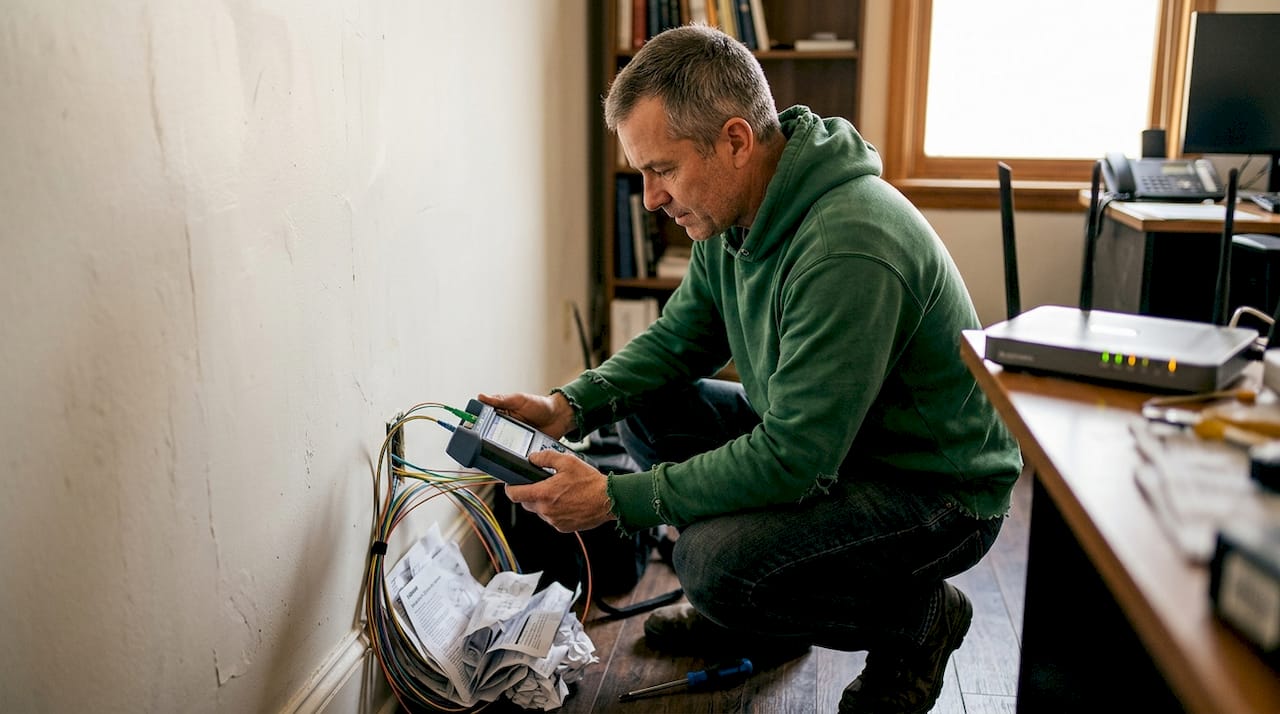
Start by researching ISPs in your area with proven track records for uptime and customer support. Fiber plans from 100-300 Mbps minimum with symmetrical speeds and low latency (5-20 ms) provide the best fixed connectivity for remote work. Symmetrical speeds matter because remote work involves constant uploads during video calls, file sharing, and cloud backups.
Follow these installation steps for optimal performance:
- Schedule professional installation if available to ensure proper fiber termination and equipment placement
- Position your main router centrally in your workspace, elevated and away from walls or metal objects
- Connect critical devices like your primary laptop and VoIP phone via Ethernet cables for maximum stability
- Configure Quality of Service (QoS) settings in your router admin panel to prioritize work traffic over streaming or downloads
- Run baseline speed tests using multiple services (Speedtest, Fast.com) at different times of day to verify advertised speeds
- Document your router’s admin credentials and ISP support contacts in a secure password manager
- Set calendar reminders to check for firmware updates monthly
If fiber isn’t available in your location, cable internet with DOCSIS 3.1 standard offers the next best alternative with speeds up to 1 Gbps. For rural areas without cable access, check our rural internet setup guide for fixed wireless and satellite options.
| Connection Type | Typical Speed Range | Latency | Best For |
|---|---|---|---|
| Fiber | 100-1000 Mbps | 5-20 ms | Primary fixed connection |
| Cable (DOCSIS 3.1) | 100-500 Mbps | 15-35 ms | Urban/suburban backup |
| Fixed Wireless | 25-100 Mbps | 20-50 ms | Rural primary option |
| DSL | 10-100 Mbps | 25-60 ms | Last resort fixed option |
Router selection significantly impacts your network performance and security. Modern WiFi 6 routers handle multiple simultaneous connections better than older standards, crucial when you’re running video calls while uploading files. Review our best routers for remote workers comparison to match hardware to your workspace size and device count.
Pro Tip: Negotiate installation timing to coincide with your move-in date when possible. Having internet active from day one eliminates the productivity gap that costs remote workers hundreds in lost billable hours.
Setting up mobile hotspots and backup connections
Even the most reliable primary connection will eventually fail. Power outages, service disruptions, and equipment failures happen, making backup connectivity essential for professionals who can’t afford downtime.
Mobile 5G hotspots provide 100-1000 Mbps speeds with 8-13 hr battery life and WPA3 security, making them ideal secondary connections. These devices activate in seconds and work anywhere with cellular coverage, perfect for digital nomads or during primary connection outages.
Set up your mobile hotspot with these steps:
- Purchase a dedicated hotspot device or enable hotspot functionality on your smartphone
- Activate the device with a carrier offering strong coverage in your work locations
- Set a strong WPA3 password (minimum 16 characters mixing letters, numbers, symbols)
- Configure the hotspot to use 5 GHz bands when available for faster speeds and less interference
- Install carrier apps to monitor real-time data usage and avoid overage charges
- Test the connection with your critical work applications to verify performance
- Keep the device charged and accessible in your workspace
eSIM technology simplifies activation when traveling internationally. Instead of hunting for local SIM cards, you can activate data plans digitally within minutes through carrier apps. This flexibility proves invaluable for digital nomads moving between countries frequently.
For remote or rural locations where cellular coverage falters, Starlink satellite internet offers 25-100 Mbps speeds with 20-40 ms latency. While more expensive than terrestrial options, Starlink provides connectivity in areas where nothing else works. The portable dish sets up in 15 minutes and requires only a clear view of the sky.

Redundancy through layered primary (fiber/eSIM), secondary (hotspot/Starlink), tertiary (coworking) connections prevents costly downtime. This layered approach means you’re never more than 30 seconds from getting back online when one connection fails.
Coworking spaces serve as excellent tertiary backups. Research spaces near your primary work location and purchase day passes in advance. When both your fixed and mobile connections fail simultaneously (rare but possible), you have an immediate workspace alternative.
Our hotspot setup guide covers advanced configurations for teams managing multiple devices, while our mobile hotspots for business comparison helps you select the right hardware for your usage patterns.
Pro Tip: Test your backup connections monthly by intentionally disconnecting your primary internet for 30 minutes. This practice run reveals any configuration issues or coverage gaps before you face a real emergency.
Securing and verifying your remote work network
Speed and reliability mean nothing if your connection exposes sensitive data to attackers. Remote workers handle confidential client information, financial data, and proprietary business assets that demand enterprise-grade security.
Start with network encryption. WPA3 represents the current WiFi security standard and fixes vulnerabilities present in older WPA2 protocols. Configure every network you control with WPA3 encryption and a complex passphrase. If your router doesn’t support WPA3, upgrade immediately, the security improvement justifies the cost.
VPN usage is non-negotiable for remote work. Always use VPNs like NordVPN to secure remote work with minimal speed loss around 8-12%. A quality VPN encrypts all traffic between your device and the internet, preventing ISPs, network administrators, and attackers from intercepting your data. The slight speed reduction is a small price for protecting client confidentiality and preventing data breaches that could destroy your career.
Implement these security practices consistently:
- Never connect to public WiFi without an active VPN, even for casual browsing
- Disable automatic WiFi connections to prevent joining malicious networks
- Use unique passwords for every network and device, stored in a password manager
- Enable two-factor authentication on all work accounts and services
- Keep all devices updated with the latest security patches
- Consider Zero Trust Network Access (ZTNA) solutions for accessing company resources
ZTNA platforms verify every connection request regardless of network location, providing superior security compared to traditional VPNs for accessing corporate systems. If your employer offers ZTNA access, prioritize it over standard VPN connections.
Verification testing ensures your connectivity setup actually works before you need it. Testing connectivity and redundancy layers on arrival prevents downtime costing hundreds per hour. Create a testing checklist and run it every time you establish a new workspace.
| Test Type | Tool/Method | Target Metric | Frequency |
|---|---|---|---|
| Download Speed | Speedtest.net | Match ISP advertised speed | Upon arrival, then weekly |
| Upload Speed | Fast.com | 50%+ of download speed | Upon arrival, then weekly |
| Latency | PingPlotter | Under 50 ms to work servers | Upon arrival, then weekly |
| Backup Failover | Manual disconnect | Switch time under 60 seconds | Upon arrival, then monthly |
| VPN Performance | Speed test with VPN active | Less than 20% speed loss | Upon arrival, then monthly |
Document your test results in a spreadsheet to track performance trends over time. Degrading speeds or increasing latency signal problems before they become critical.
Our secure remote networks guide provides advanced security configurations for remote teams handling sensitive data.
Pro Tip: Schedule your verification tests during your typical working hours to catch peak-time congestion issues that might not appear during off-hours testing.
Reliable internet solutions for remote work
Setting up bulletproof connectivity requires the right hardware and service providers. Sabertooth Pro specializes in internet solutions designed specifically for remote workers and digital nomads who demand reliability.
Our wireless internet provider services deliver high-speed connectivity without the constraints of traditional wired installations, perfect for temporary locations or areas with limited infrastructure. For permanent workspaces, explore our residential internet services offering fiber and fixed wireless options optimized for remote work demands.

Mobile professionals benefit from our 5G Bolt wireless internet device, combining blazing 5G speeds with portable convenience. The device supports multiple simultaneous connections and includes enterprise-grade security features that protect your data across any network.
Our connectivity specialists help you design custom solutions matching your specific remote work scenario, whether you’re establishing a home office, outfitting a van for mobile work, or ensuring backup connectivity across multiple international locations.
FAQ
How do I choose the best internet speed for remote work?
Match your speed requirements to your actual work tasks. Video conferencing needs stable 25 Mbps download speeds, while heavy file uploads demand 50+ Mbps or higher. Test your current usage patterns for a week to identify your real needs, then add 25% headroom for growth and multiple simultaneous activities.
What is the best backup connectivity option for digital nomads?
5G mobile hotspots with WPA3 security provide excellent portable backups for most situations. For rural or extremely remote locations, Starlink satellite internet delivers reliable connectivity where cellular coverage fails. Always maintain at least two backup options (mobile hotspot plus coworking space access) to ensure you’re never completely offline.
How do I secure my remote work connection on public WiFi?
Never connect to public WiFi without activating your VPN first, even for seemingly harmless browsing. Public networks are hunting grounds for attackers intercepting unencrypted traffic. If your router supports WPA3, use it exclusively, and consider implementing Zero Trust Network Access for accessing company resources instead of relying solely on VPN connections.
How often should I test my internet speed and backup systems?
Test your primary connection and all backup systems immediately upon arriving at any new work location. Run weekly speed tests on your primary connection to catch degradation early. Test backup failover monthly by intentionally disconnecting your primary internet for 30 minutes to verify your secondary systems activate properly and provide adequate performance for your work needs.