


Secure Mobile Internet Setup Guide for Reliable Connectivity

Over half of American mobile users report spotty connections or unexpected internet dropouts while on the go. Staying connected has never been more vital for work, education, and personal life—unreliable service can disrupt everything from meetings to medical needs. This guide demystifies the entire process, giving you practical steps for choosing the right gear, setting up secure connection, and ensuring your American mobile internet stays fast, safe, and always available.
Table of Contents
- Step 1: Select the Right Mobile Internet Hardware
- Step 2: Activate and Configure Your Data Plan
- Step 3: Set Up Secure Network Authentication
- Step 4: Enable Advanced Security Features and VPN
- Step 5: Test and Monitor Network Performance
Quick Summary
| Key Takeaway | Explanation |
|---|---|
| 1. Choose compatible hardware | Ensure your device supports multi-carrier SIM and strong signal reception for better connectivity. |
| 2. Configure APN settings correctly | Obtain and input correct Access Point Name settings from your provider to establish secure connections. |
| 3. Implement robust network security | Use WPA3 encryption and a strong password to prevent unauthorized access to your network. |
| 4. Monitor network performance regularly | Run speed tests at different times to track connection quality and identify issues promptly. |
| 5. Use a reliable VPN | Encrypt internet traffic with a reputable VPN to protect sensitive data, especially on public networks. |
Step 1: Select the Right Mobile Internet Hardware
Choosing the right mobile internet hardware sets the foundation for reliable connectivity. Your selection determines internet speed, stability, and overall performance across different environments and use cases. When evaluating mobile internet devices, you’ll want to consider multiple factors that ensure robust and secure internet access.
Start by examining hardware compatibility with your specific needs. Mobile healthcare professionals recommend bonding multiple internet connections from different carriers to create a more resilient connection. This strategy provides backup options and reduces the risk of complete internet failure. Look for devices that support multi-carrier SIM functionality and have strong signal reception capabilities. Some advanced mobile hotspots now offer built-in signal amplification and automatic carrier switching technologies.
Another critical consideration is bandwidth management and security features. Utilize Quality of Service (QoS) tools to effectively manage your internet bandwidth, ensuring consistent performance for critical tasks. Prioritize hardware with integrated VPN support, password-protected Wi-Fi networks, and advanced encryption protocols. Consider devices that offer real-time speed monitoring and diagnostic tools to help you understand your connectivity performance.
Pro tip: Always test your mobile internet hardware thoroughly before deployment, running multiple speed tests with different carriers and in various locations to confirm reliable performance and coverage.
Here’s a summary of key mobile internet hardware features and their impact on performance:
| Feature | What It Does | Impact on Connectivity |
|---|---|---|
| Multi-carrier SIM Support | Allows use of several carriers | Reduces downtime and improves reliability |
| Signal Amplification | Strengthens weak cellular signals | Enhances speed in low-coverage areas |
| Automatic Carrier Switching | Switches to best available network | Maintains stable internet connection |
| Bandwidth Management (QoS) | Optimizes data allocation | Ensures critical tasks run smoothly |
| Real-Time Speed Monitoring | Tracks connection speed and issues | Enables quick troubleshooting |
| Integrated VPN Support | Encrypts internet traffic on device | Protects sensitive data in transit |
Step 2: Activate and Configure Your Data Plan
Activating and configuring your mobile internet data plan is a critical step in establishing reliable connectivity. This process involves selecting the right plan, understanding your data requirements, and properly setting up your device to ensure smooth internet access across various networks and devices.
The first phase of activation involves obtaining the correct Access Point Name (APN) settings for your mobile device. University cybersecurity experts emphasize the critical importance of sourcing APN settings only from trusted providers to prevent potential security vulnerabilities such as malware infections and network interception risks. Begin by contacting your mobile internet provider to get the precise APN configuration details specific to your service plan. These settings typically include parameters like APN name, username, password, and authentication type which are essential for establishing a secure connection.
After obtaining the official APN settings, navigate to your device’s network settings and input the information precisely as provided. Verify each setting carefully, ensuring no typographical errors that could prevent successful connection. Most modern smartphones allow manual APN configuration under cellular or mobile network settings, where you can add a new APN profile with the credentials from your service provider. Pay special attention to network type compatibility, ensuring your device supports the appropriate cellular technology such as 4G LTE or 5G, depending on your selected data plan.
Pro tip: Always screenshot or securely document your APN settings before making changes, providing a quick reference point if you need to restore previous configurations or troubleshoot connection issues.
Step 3: Set Up Secure Network Authentication
Securing your mobile internet network authentication is a critical step in protecting your digital communications and personal information. This process involves implementing robust security measures that prevent unauthorized access and safeguard your data from potential cyber threats.

Cybersecurity experts recommend using advanced encryption protocols like WPA3 to create a robust security framework for wireless networks. Begin by accessing your router or mobile hotspot settings and selecting the most current security protocol available. Ensure you create a complex password that combines uppercase and lowercase letters, numbers, and special characters. Avoid using easily guessable information like birthdays or common words. Enable additional security features such as MAC address filtering, which allows only specific devices to connect to your network and provides an extra layer of protection.
Implement a Virtual Private Network (VPN) to further enhance your network security, especially when accessing public or shared wireless networks. A VPN encrypts your internet traffic, making it significantly more difficult for potential hackers to intercept your data. Choose a reputable VPN service that offers strong encryption protocols and has a proven track record of protecting user privacy. Configure the VPN to activate automatically when connecting to unknown or public networks, ensuring continuous protection of your sensitive information.
Pro tip: Regularly update your network authentication credentials and router firmware to maintain the highest level of security protection against emerging cyber threats.
Step 4: Enable Advanced Security Features and VPN
Enabling advanced security features and implementing a robust Virtual Private Network (VPN) are essential steps in protecting your mobile internet connection from potential cyber threats. This process involves configuring multiple layers of security to safeguard your digital communications and personal information.
Mobile device security experts recommend implementing comprehensive Mobile Device Management (MDM) strategies to enforce robust data protection standards across all network connections. Start by activating advanced security features on your mobile device and router. This includes enabling two factor authentication, which requires an additional verification step beyond your standard password. Configure your device to automatically install security updates, ensuring you have the latest protection against emerging cyber vulnerabilities. Additionally, consider implementing application level security measures such as restricting app permissions and using secure app stores.
Next, select and configure a reputable VPN service that offers military grade encryption and a strict no logging policy. Configure the VPN to activate automatically when connecting to public or unsecured networks, creating an encrypted tunnel that shields your internet traffic from potential interceptors. Pay special attention to the VPN settings, ensuring it covers all network interfaces and blocks internet traffic if the VPN connection drops. Some advanced VPN solutions offer split tunneling, allowing you to choose which applications route through the encrypted connection, providing flexible and granular control over your network security.
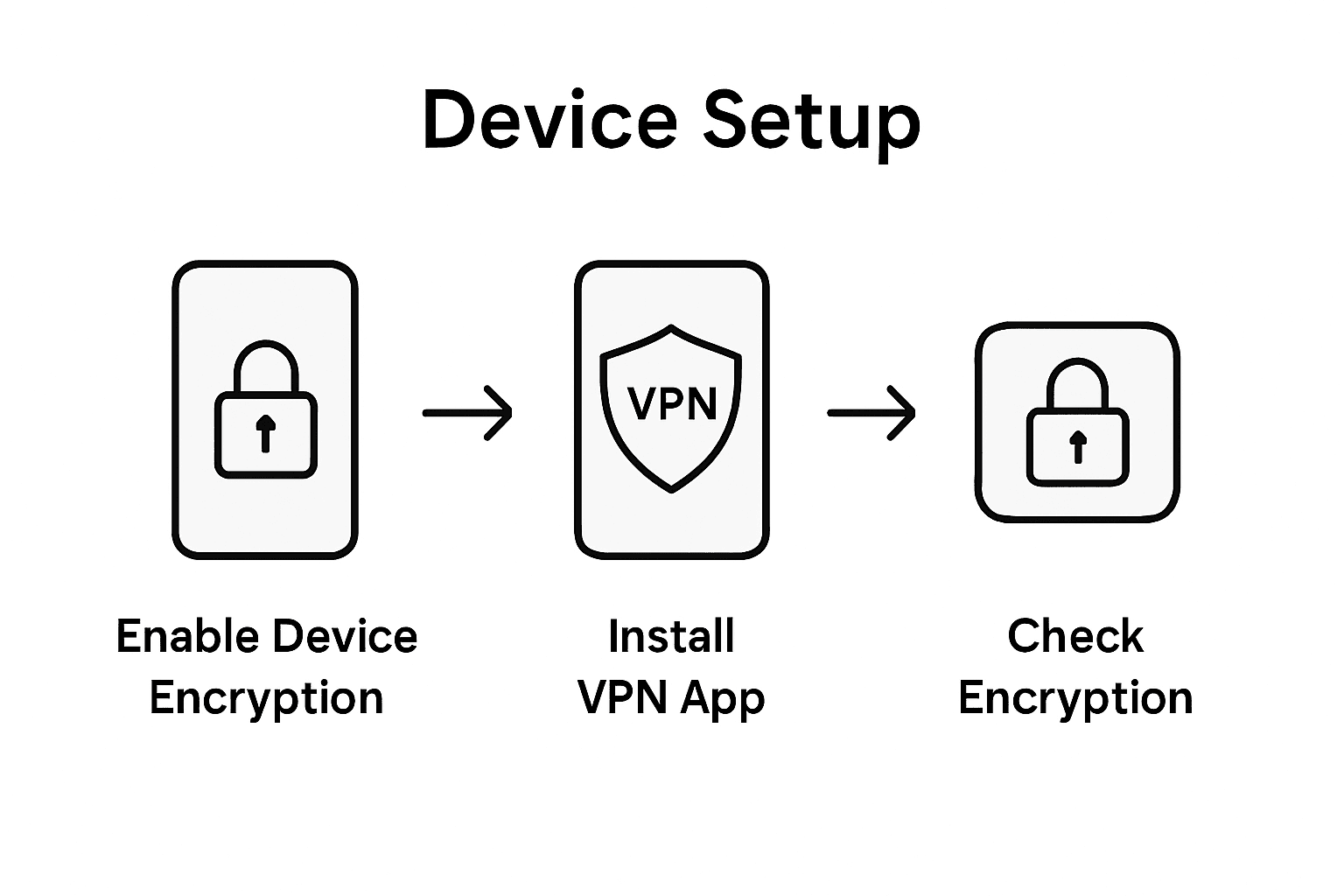
Pro tip: Regularly audit your security settings and VPN configuration every three months, checking for updates and reviewing connected devices to maintain optimal network protection.
Step 5: Test and Monitor Network Performance
Testing and monitoring your mobile internet network performance is crucial for ensuring consistent connectivity and identifying potential issues before they become significant problems. This step helps you understand the real world performance of your mobile internet connection and take proactive measures to optimize your network experience.
Technology experts recommend using independent speed testing tools like speedtest.net to accurately measure the quality of service provided by your Internet Service Provider. Begin by running multiple tests at different times of day to establish a comprehensive performance baseline. Take screenshots of your test results with clear timestamps, which can serve as valuable documentation if you need to discuss performance issues with your service provider. Pay attention to key metrics such as download speed, upload speed, ping time, and network latency. These measurements will help you understand the actual performance of your mobile internet connection and identify any potential bottlenecks.
Implement continuous monitoring strategies using Mobile Device Management (MDM) solutions that provide real time insights into your network performance and security status. These tools can help you track network stability, detect potential vulnerabilities, and ensure your devices are running the most current software updates. Consider using network monitoring applications that can provide detailed reports on connection quality, data usage, and potential performance interruptions. Some advanced monitoring tools can even automatically switch between cellular and Wi Fi networks to maintain optimal connectivity.
Pro tip: Create a performance log spreadsheet to track your network speed test results over time, which will help you identify trends and quickly detect any degradation in your mobile internet service.
Here’s a quick reference to common network performance metrics and what they reveal:
| Metric | What It Measures | What Low/High Values Mean |
|---|---|---|
| Download Speed | Data received per second | High: Fast browsing, Low: Slow load |
| Upload Speed | Data sent per second | High: Smooth video calls, Low: Lag |
| Ping Time | Signal response delay | Low: Quick response, High: Laggy |
| Network Latency | Overall communication delay | Low: Real-time use, High: Delays |
| Jitter | Variability in ping times | Low: Stable connection, High: Fluctuations |
Secure Your Mobile Internet with SabertoothPro Solutions
Building a reliable and secure mobile internet connection requires the right hardware, expert configuration, and strong security layers. If you want to avoid common issues like connection drops, weak signals, and security vulnerabilities discussed in the guide, SabertoothPro offers tailored solutions designed to keep you connected and protected. From cutting-edge 4G LTE and 5G hotspots to advanced network security features such as integrated VPN support and zero-trust frameworks, we provide everything needed for seamless, worry-free connectivity.
Check out our premium mobile hotspots and plans to experience superior network performance and security:

Ready to enhance your mobile internet setup with proven, high-speed technology? Explore our Titan WiFi collection for devices built for multi-carrier support and automatic switching. Secure your connection with our flexible Titan WiFi hotspot plans offering reliable data services. Take the first step toward reliable and secure connectivity by visiting SabertoothPro today.
Frequently Asked Questions
How do I select the right mobile internet hardware?
To select the right mobile internet hardware, examine compatibility with your specific needs and consider devices that support multi-carrier SIM functionality. Look for options that provide strong signal reception, automatic carrier switching, and essential security features like VPN support.
What are the steps to activate and configure my mobile internet data plan?
Activate your data plan by obtaining the correct Access Point Name (APN) settings from your provider and entering them into your device’s network settings. Carefully verify each setting to ensure a secure and successful connection, paying attention to device compatibility with your plan’s network type.
How can I secure my mobile internet network authentication?
To secure your mobile internet network, enable advanced encryption protocols like WPA3 and create a complex password. Implement features such as MAC address filtering to restrict network access to specific devices, adding an extra layer of protection against unauthorized connections.
What advanced security features should I enable for my mobile internet?
Enable advanced security features such as two-factor authentication and ensure your device installs security updates automatically. Additionally, activate a reputable VPN that provides strong encryption to protect your internet traffic, especially when using public networks.
How do I test and monitor my mobile internet performance?
Test your mobile internet performance by running multiple speed tests at different times of the day to establish a baseline for your connection. Use real-time monitoring tools to track key metrics like download speed and network stability, helping you quickly identify and troubleshoot any performance issues.