


How to Secure Mobile Hotspots for Maximum Protection

More than 51 percent of American smartphone users rely on mobile hotspots each year for secure access when public Wi-Fi is not an option. With online threats evolving rapidly, leaving your hotspot unprotected can put personal data and browsing privacy at risk. This guide explains how Americans can strengthen their hotspot security with expert-approved steps that make it harder for intruders to break in and easier for you to control your digital environment.
Table of Contents
- Step 1: Assess and Configure Basic Hotspot Settings
- Step 2: Enable Strong Network Encryption and Set a Strong Password
- Step 3: Update Hotspot Firmware and Disable Unnecessary Features
- Step 4: Restrict Connected Devices and Monitor Usage
- Step 5: Test Security and Verify Safe Connection Practices
Quick Summary
| Key Insight | Explanation |
|---|---|
| 1. Use Strong Passwords | Create complex passwords with mixed characters to prevent unauthorized access. |
| 2. Implement WPA3 Encryption | Use WPA3 or WPA2 to protect your network from threats and secure connections. |
| 3. Limit Device Connections | Restrict the number of devices connected to your hotspot for better security control. |
| 4. Keep Firmware Updated | Regularly update your device’s firmware to apply the latest security patches. |
| 5. Monitor Connected Devices | Regularly review connected devices to identify and block any unauthorized access. |
Step 1: Assess and Configure Basic Hotspot Settings
Configuring your mobile hotspot’s settings is critical for establishing secure internet connectivity and protecting your digital environment. You will strategically adjust network preferences, authentication protocols, and device management controls to maximize safety.
Begin by accessing your hotspot configuration interface through the device’s management portal or companion smartphone app. Look for the wireless settings section where you can customize network parameters. Start by selecting a strong, unique password that combines uppercase and lowercase letters, numbers, and special characters. Avoid using personal information or common words that could be easily guessed.
When setting up network credentials, choose WPA2 or WPA3 encryption standards which provide robust protection against unauthorized access. Your hotspot should broadcast a distinct network name (SSID) that does not reveal personal details about your location or identity. Consider disabling SSID broadcasting to make your network less visible to potential attackers. Additionally, limit the number of devices that can simultaneously connect to your hotspot and regularly review connected device lists to identify any unknown or suspicious connections.
Remember that periodic configuration reviews are essential. Treat your mobile hotspot settings like a digital fortress where each adjustment reinforces your network’s security perimeter.
Step 2: Enable Strong Network Encryption and Set a Strong Password
Securing your mobile hotspot starts with implementing robust encryption and creating a password that acts as your digital defense mechanism. This critical step will protect your network from unauthorized access and potential security breaches.

The Federal Trade Commission recommends implementing advanced network encryption standards like WPA3 or WPA2 to safeguard your connection. When creating your password, craft a complex combination that goes beyond simple dictionary words. A strong password should include a minimum of 12 characters, mixing uppercase and lowercase letters, numbers, and special symbols. Avoid using personal information like birthdays, addresses, or names that could be easily guessed by potential attackers.
Your network name (SSID) also plays a crucial role in security. Choose a unique identifier that does not reveal personal details about your location or identity. Consider generating an obscure name that provides no insight into your personal background. Some experts recommend disabling SSID broadcasting to make your network less visible to potential intruders. Regularly update your encryption settings and password to maintain an evolving security posture that keeps digital threats at bay.
As you progress, remember that network security is an ongoing process. Each strategic adjustment creates another layer of protection for your digital environment.
Step 3: Update Hotspot Firmware and Disable Unnecessary Features
Maintaining the security of your mobile hotspot requires proactive management of device software and feature configurations. This step focuses on keeping your device updated and minimizing potential security vulnerabilities by streamlining its operational settings.
User manuals consistently recommend updating device software to ensure the latest security patches are installed. Check your hotspot manufacturer’s website or companion app for firmware updates, which typically address known security weaknesses and improve overall device performance. During the update process, carefully review and download only official firmware directly from the manufacturer to prevent potential malware infiltration.
Disable unnecessary network features that could compromise your security such as Wi-Fi Protected Setup (WPS), which can create significant vulnerabilities. Many devices have default administrator credentials that should be immediately changed to a strong, unique password. Pay special attention to features like remote management, universal plug and play (UPnP), and automatic device discovery which can potentially expose your network to external threats.
Remember that security is an ongoing process. Regularly reviewing and updating your hotspot’s firmware and feature settings creates a dynamic defense against emerging digital risks.
Step 4: Restrict Connected Devices and Monitor Usage
Controlling access to your mobile hotspot is critical for maintaining network security and preventing unauthorized usage. This step will help you implement robust device management strategies that protect your digital environment from potential intrusions.
Advanced network security techniques include using MAC address filtering to create a whitelist of approved devices. Each network device has a unique MAC address that you can manually authorize in your hotspot settings. Start by identifying the MAC addresses of your trusted devices such as smartphones, laptops, and tablets. Access your hotspot configuration interface and enter these addresses into the MAC filtering section, effectively blocking any unknown devices from connecting to your network.
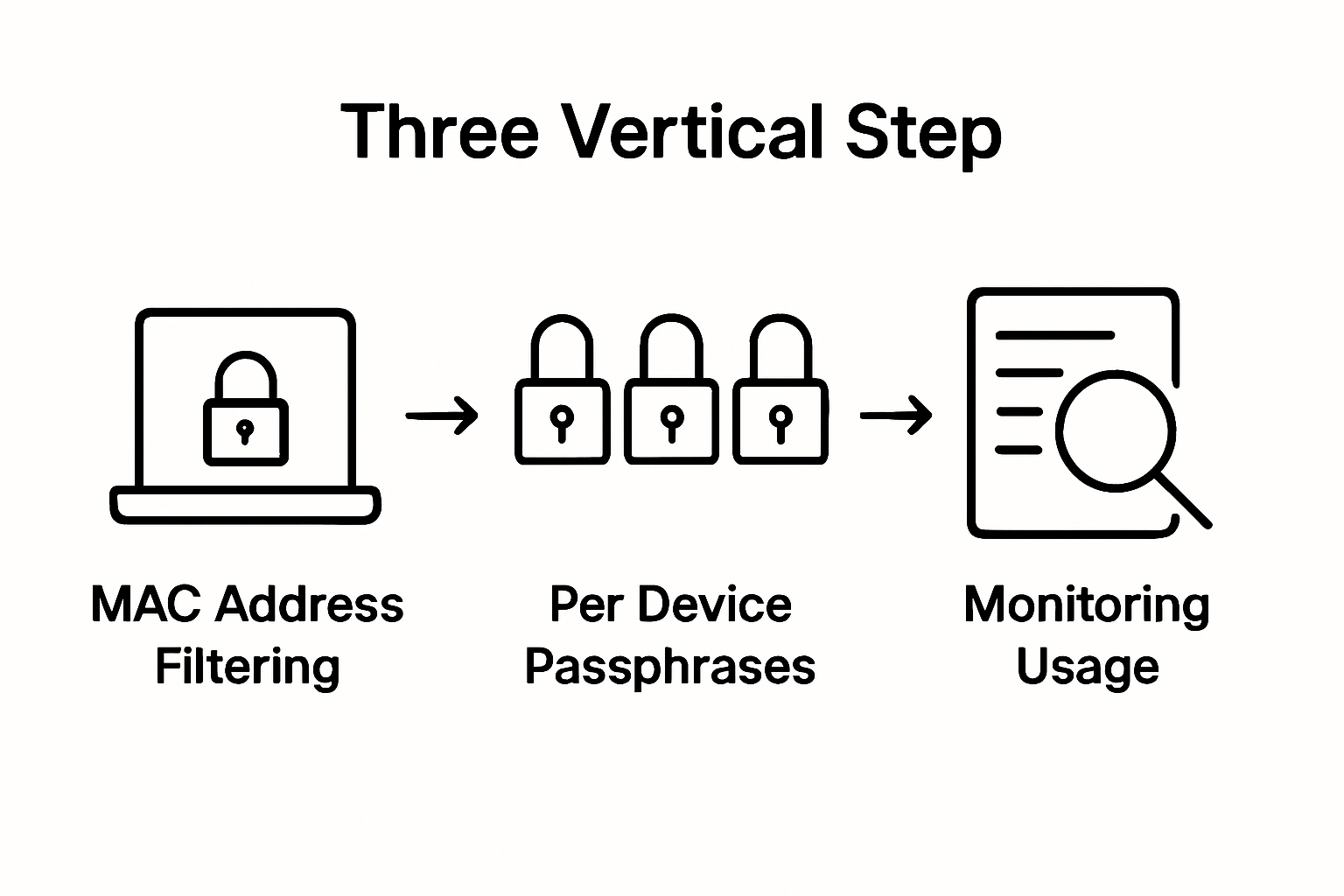
Implementing per device passphrases provides an additional layer of access control that significantly enhances your network security. Consider creating unique credentials for different devices or user groups, which allows you to granularly manage network access. Regularly review your connected device list to identify any unfamiliar or suspicious connections. Most modern hotspots offer real time monitoring tools that display device connection times, data usage, and connection history.
Remember that device management is an ongoing process. Treat your network access control like a dynamic security checkpoint where each connection requires careful verification.
Step 5: Test Security and Verify Safe Connection Practices
Validating the effectiveness of your mobile hotspot security measures requires systematic testing and continuous monitoring. This final step ensures that your implemented protections actually work as intended and provide robust defense against potential network vulnerabilities.
University security experts recommend conducting comprehensive network security assessments to verify your configuration. Start by running multiple penetration tests using specialized network scanning tools that can identify potential weaknesses. Check for open ports, validate encryption strength, and confirm that your MAC address filtering and device restrictions are functioning correctly. Simulate potential intrusion scenarios by attempting to connect unauthorized devices and verifying that they are successfully blocked.
Federal Trade Commission guidelines emphasize the importance of periodic security verification through systematic review processes. Utilize online security assessment tools that can provide detailed reports on your network’s current security status. Pay close attention to encryption protocols, checking that WPA3 or the latest security standards are actively implemented. Review your connection logs regularly to track any suspicious access attempts or unexpected device connections.
Remember that network security is not a one time setup but an ongoing commitment. Treat your mobile hotspot like a living system that requires constant vigilance and proactive management.
Secure Your Mobile Hotspot with SabertoothPro for Ultimate Protection
Managing mobile hotspot security involves crucial steps like setting strong passwords, enabling encryption, restricting connected devices, and continuously updating firmware. If you want to move beyond just theory and ensure your network’s safety with reliable, high-performance devices SabertoothPro is your go-to resource. Our advanced 4G LTE and 5G hotspots are designed with built-in security features that align perfectly with best practices such as WPA3 encryption and device management controls.

Take control of your internet experience today by exploring our versatile Titan WiFi hotspots and secure your connection with plans tailored for both personal and business use at Titan WiFi hotspot plans. Discover how enhanced security combined with cutting-edge technology can protect your data wherever you go. Visit SabertoothPro.com now and step into a safer connected future.
Frequently Asked Questions
How can I access my mobile hotspot’s configuration settings?
To access your mobile hotspot’s configuration settings, open your device’s management portal or companion smartphone app. Look for the wireless settings section to customize network parameters.
What encryption standards should I use to secure my mobile hotspot?
You should use WPA2 or WPA3 encryption to secure your mobile hotspot. Ensure that you select these standards when setting up your network credentials to maximize security.
How do I create a strong password for my mobile hotspot?
Create a strong password by combining at least 12 characters that include uppercase and lowercase letters, numbers, and special symbols. Avoid using easily guessed personal information, like birthdays or names, to enhance your network’s security.
What steps can I take to monitor connected devices on my mobile hotspot?
To monitor connected devices, regularly check the connected device list in your hotspot settings and identify any unfamiliar or suspicious connections. Consider using real-time monitoring tools to track device connection times and data usage.
How can I ensure my mobile hotspot firmware is up to date?
Ensure your mobile hotspot firmware is up to date by checking your hotspot manufacturer’s website or companion app for available updates. Regularly perform these checks to apply security patches and improve device performance.
What should I do if I find unauthorized devices connected to my hotspot?
If you find unauthorized devices connected to your hotspot, remove them immediately from the connected device list and consider implementing MAC address filtering. This allows you to maintain a whitelist of approved devices to prevent unauthorized access.